Showing posts with label photoshop. Show all posts

Friday, June 23, 2017

Photoshop Lighroom Photography Program Adobe Creative Cloud

Photoshop Lighroom Photography Program Adobe Creative Cloud


Latest Adobe OFFER expires February 28…
If you have Photoshop CS 3 and up…

Photoshop and Lightroom


For a limited time, you can join a special Creative Cloud photography plan designed exclusively for Photoshop customers.
 It includes access to Photoshop CC and Lightroom 5, plus feature updates and upgrades as they are available, 20GB of cloud storage for file sharing and collaboration, and a Behance ProSite. And its just US $9.99/month when you sign up for a one-year plan, but you need to join by February 28, 2014. To qualify, you must own a commercial version of Photoshop CS3 or later (Standard or Extended version, as a stand-alone product or as part of a suite). 
Get the details here... Photoshop Photography Program : Adobe Creative Cloud

Go to link Download

Read more »

Sunday, June 18, 2017

Photoshop Tools Uses

Photoshop Tools Uses


Ill start form the bottom and work my way up explaining the uses of all the Photoshop tools that I use.

Image Ready - button lets you edit the image in Adobe Image-ready.

Screen Modes - Standard lets you see all the images youre editing in separate windows, the next button maximizes all the windows of the images to the workspace, and the full screen mode maximizes the image to the whole screed over the task-bar.

Foreground and Background Colors - lets you see and change the colors youre editing an image with.


Hand Tool - if you know what it does, tell me.

Zoom Tool - Zoom in a particular part of the image.

Eyedropper - Using Alt you can copy a certain color form an image and draw with that color on the image or a separate image.

Objects Tools - There are Rectangle, Rounded Rectangle, Ellipse, Line, Polygon, and Custom Shape Tools, each of which can be draw on an image.

Text Tools - Lets you put text on an image.

Smudge Tool - Smears the image in the direction you choose.

Blur Tool - Blurs an image in areas you select.

Paint Bucket Tool - Fills a chosen color on to an image with the selected color.

Erase Tool - Erases an image to its background, either white, a selected color, or transparent.

Clone Stamp Tool - Using Alt you can select a part of an image and recopy that part to a different image or to a different area of the same image.

Brush Tool - Draws lines of a selected brush in a direction you choose.

Pencil Tool - Draws lines of a selected brush in a direction you choose, without anti-aliasing.

Crop Tool - Crops the image to the area selected.

Move Tool - Moves the objects or layers in the image, or the image itself.

Wand Tool - Selects a color and its shades so that only that part of an image can be modified or added effects to.

Lasso Tool - Lets you select a part of an image to be modified by itself.

Marquee Tools - Lets you select a defined object of an image or creat a defined object.

Photoshop Tools lets you create your own workspace that fits you the best.
You can move or get rid of any options and settings windows in your workspace so that it can be used to your best interest.

Go to link Download

Read more »

Tuesday, June 13, 2017

Photoshop Maxon Cinema 4D tutorial Learn the best ways to create 3D type

Photoshop Maxon Cinema 4D tutorial Learn the best ways to create 3D type


Intro
Currently, there are two main ways to create 3D typographic illustrations with extruded letters, textures and lighting. You can use Photoshop CS6 Extended – or soon, Photoshop CC – to easily create a relatively accurate rendering that’s great if you want a non-photorealistic look for graphics, logos and the like. If, however, you want a realistic render with accurate lighting, it’s time to move over to a 3D suite such as Cinema 4D. This is the easiest to learn and use if you’re used to Adobe’s toolset.
Here, Hawaiian illustrator Christopher Vinca takes you through two different renderings of the same type, created in Illustrator using Photoshop and Cinema 4D. He details the differences between the processes and the results that can be achieved.
In the first half of the tutorial, you will use the basic 3D tools in Photoshop Extended to create 3D type. You will then use photographs to texture the surface to add depth and details in a way that’s much faster than applying them to the 3D shapes before rendering.
In the second part, Christopher will teach you how to get photorealistic renders in Cinema 4D. You’ll learn how to use the free CV-ArtSmart plugin, set up lights and make a studio for your text. You’ll also create materials to make a convincing 3D object.
If you’re new to Cinema 4D but an old hand at Photoshop, this is an excellent first tutorial for the 3D suite, as you’ll be following a process in an application you know well, rather than in the one you want to learn.

Tools

Photoshop CS6 Extended, Cinema 4D R13 (or later)


Step: 1
I’ve provided my own typography for this tutorial, but if you want to use your own, here’s what you should do. In Illustrator, ensure your text is converted to outlines. If not, select everything and go to Effect > Path > Outline Object. Select everything again and hit Cmd/Ctrl + C to copy it to the clipboard.
Open Photoshop and create a new file, sized 8 x 8 inches at 300dpi. Make sure you have a transparent background. Now hit Cmd/Ctrl + V to paste your vector into Photoshop. A dialog box will appear; select Shape Layer. Hit Cmd/Ctrl + Delete to fill the object with white


Step: 2
Under the 3D menu, choose New Extrusion from Selected Layer. Another dialog will ask if you want to go into the 3D workspace. Click Yes. Once you’re in the 3D space, select Environment from the 3D panel. In the Properties panel, find the Ground Plane. Pull the opacity down to 0%.
Choose Current View in the 3D panel, and make sure your FOV is at 67mm lens and 0.5 for DOF (these are the default camera settings).


Step: 3

Go to Shape 1 in the 3D panel. In the Properties panel, choose an Extrusion Depth of 1,700, then select the Deform settings from the icons at the top of the panel and set Taper to 0%. This will give your text depth without distorting it.
Select the Infinite Light 1 in the 3D panel. Position it on the canvas in the front, slightly to the upper right. Change the Shadow Softness to 85% in the Properties panel.
Create a new layer and fill it with black. Drag it under the ‘Shape’ layer – this will be the background for the text. Right-click the 3D shape layer and select Render.
My render time was between three and four hours, so this is a good time to take a break.


Step: 4
Once the render is finished, it’s time to add texture. We could have applied this to the model before rendering, but then the render would have taken even longer. It’s often faster to do this afterwards, and the effects are near-indistinguishable.
Choose Select > Color Range. With the eyedropper, select the white text with a fuzziness of 160. Then go to Select > Modify > Expand with an Expand By 1 pixel. Press Cmd/Ctrl + J to duplicate the selected area onto its own layer.

Step: 5
For my texture, I used a free photo of concrete from lostandtaken.com. Copy and Paste the image into your document. With the picture layer selected in the Layers panel, right-click and select Create Clipping Path to clip it onto your text layer.
Duplicate this texture several times and scale these down to increase the detail of the 3D text. Use layer masks to hide the seams, then merge all the textures into one layer and change its blending mode to Multiply. Add a Bevel and Emboss layer style to the text layer to increase the depth, using the settings shown to create an outer bevel.
 

Step: 6
Next, we will make an inner bevel. Duplicate the flat text layer by hitting Cmd/Ctrl + J, and Cmd/Ctrl + click the thumbnail to make a selection around it. Go to Select > Modify > Contract and bring it in by 4px.
Invert the selection and press Delete. Put this text layer on top of the rest and clip a duplicate texture from the first copy. Add a Bevel and Emboss layer style using the settings shown above to create an inner bevel.


Step: 7
It’s now time to texture the extrusion. Copy and paste the concrete texture, and clip it under the first shape layer. Set the texture layer’s blending mode to Multiply. Add a Brightness/Contrast adjustment to brighten it if needed.
To finish it off, add a layer above the background. Create a white to transparent radial gradient from the centre outwards, and set the layer’s opacity to 35%. This will makes the 3D text pop from the background.


Step: 8
Hide the gradient and background. With the top layer selected, hit Cmd/Ctrl + Shift + Alt + E. This will duplicate and merge all visible layers. Add a Hue/Saturation adjustment layer and clip it to the text. Check the Colorize box and change the layer’s blending mode to Color – I opted for gold. Finally, turn the gradient and background layer visible again and you’re ready.


Step: 9
Now, let’s do it again in Cinema 4D. Open that application and, if needed, install the CV-ArtSmart plugin from bit.ly/15vgcyK. Go to Plugins > CV-ArtSmart > CV-ArtSmart Object and choose your vector file.


Step: 10
If you’ve not used CV-ArtSmart before, spend some time familiarising yourself with the tabs. Extrude your text by 50cm. Add a fillet cap by using the Caps settings shown above and rotate your text by 90 degrees.


Step: 11
Next, make a plane and scale it to 1,340 x 1,340cm. This will be the ground. Make sure the text is resting on the floor and that it’s not floating. Now press Alt and drag out duplicates of the plane. Make a box – this will be the studio space that we’ll light from within.
Select the front-most side of the box. Open the Attributes panel and, in the Basic tab, change Visible in Editor to off. That way we can see inside our scene.


Step: 12
Now we’re going to produce our lights. Create a sphere (Create > Primitive > Sphere) and scale it using the Coord tab in the Attributes panel. Make it look like a flat sphere, and position it in the upper left of our box.
Make a second sphere. Scale it into a long cylinder shape and place it on the bottom left. This will be our fill light.


Step: 13
Now create materials for your objects. See opposite for the settings I’ve used for the:
• walls (top left and right)
• text (middle left and right)
• the main light (bottom left)
• fill light (bottom right)


Step: 14
Hit Cmd/Ctrl + B to open the Render Settings panel. If you want to make a poster, change the size to 8 x 11 inches. Create a camera and position and align it so the text is towards the upper half. Your scene should look like the screenshot (above).


Step: 15
In the Render Settings, click on Effect and select Global Illumination. Change the settings in the General and Irradiance Cache to those shown (right). Render it out to the Picture Viewer for the final poster.


Step: 16
Once the render is done, bring it into Photoshop. Under the Filter menu, choose the Field Blur (we’re blurring here rather than in Cinema 4D to save a lot of rendering time). Position the pins at the top and bottom as shown. Set it to a 10px blur on the outsides and 0px in the middle. Your finished image should look like this.

Go to link Download

Read more »

Thursday, June 8, 2017

Photoshop CS5 Portable

Photoshop CS5 Portable


Ps CS5 Portable 66 MB


========================================

Go to link Download

Read more »

Wednesday, June 7, 2017

Photoshop Cc And Cs6 Crack For Mac Os Free Download

Photoshop Cc And Cs6 Crack For Mac Os Free Download


Am not really going to go into deep details about how you can Download Adobe Photoshop CC/Cs6 and activate it with this Working Adobe Photoshop cs6 Keygen For Mac os. It generates photoshop CC and Cs6 crack and serial key.

Adobe Photoshop cs6 serial key for mac

http://bit.ly/1JbXDTv

HOW TO CRACK ADOBE PHOTOSHOP CS6 ON MAC


–  Disconnect the network before installing.


– Open the installer, the first step to select the trial.


–  Login ? Sign In Later Accepted


– Install, after install run the Photoshop CC once, Select "Start Trial" …


–  When the program opens and then closes it.


– Now Open the finder, right-click Photoshop select


–  Show Package Contents.


–  Copy amtlib.framework (From the keygen) folder to Frameworks folder.


– After cracked, open Adobe Application Manager, now you can get update.


Enjoy


If you have any problem activating your photoshop on mac leave a comment.


https://www.facebook.com/sharer/sharer.php?u=http://adobeillustratorcs6crack.com/


http://bit.ly/1JbXDTv


Go to link Download

Read more »

Tuesday, June 6, 2017

PHOTOSHOP CS6 Giáo Trình Căn Bản từ 1 đến 14 KS Dương Trung Hiếu

PHOTOSHOP CS6 Giáo Trình Căn Bản từ 1 đến 14 KS Dương Trung Hiếu


Go to link Download

Read more »

Monday, June 5, 2017

Place a text in image Photoshop tutorial

Place a text in image Photoshop tutorial


Place a text in image , Photoshop tutorial

Hello my visitors 
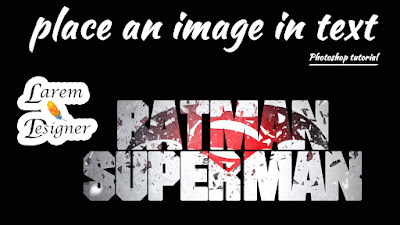
With this tutorial for beginner i will show you how to place an image in text using adobe Photoshop , very simple and you can do this step in less than two minute , just follow my step in my video below.
Like my page Facebook
 www.facebook.com/laremdesigner 


Subscribe to my YouTube channel
YouTube channel Larem Designer

Follow me on twitter
 www.twitter.com/laremdesigner


Go to link Download

Read more »

Friday, June 2, 2017

Photoshop පාඩම් අංක 1

Photoshop පාඩම් අංක 1


???? ????? ?? ?? ???? ???? ?? ?????? ??? ?????? Photoshop ???? ?????. ?????? ???????? ?? ???? ?? ?????? ?? ??? ?????? ???? ????? (?? ??? 10.10.10). ?? ?????? ??? Facebook ????? Like ????? ???? ????? ???. ????? ?? ?????? ??? updates ? ???????? ??????? ???????.


?? ????? ????? ????? ?????? ???? ????? ??? Photoshop ?? ??????? ???? ???? ??? ??????? ???????????? ??? ???????? ????? ??? ???? ???? ????. ?? ???? ????? ??????? ???? ???????? ?????. ????? ?? ???? ?????? background ?? ?? ?????? ???? ????? ????? image ?????? ?????? ???? ??? ???????. ?? ???? ?? ???????? ?????? ??? ???? image ????.


???????? ?????? ?? image ??? background ?? ????? ????? ???????.????? ?????? ??? ?????.?????? ?????? ?? ???????? ?????? ???? ????? ????.????? ?? tutorial ????? ???? ?????? Channels ?????? ?????? ??????? images ?? background ?????? ?????? ??? ???? ??? ?????.


1) ??????? ?? image ?? Photoshop ????? open ??????. ?? ????? ? image ??? ????? (layer) ?? duplicate ?????? (Right-click ?? Duplicate Layer ???? ?? click ?????)


-------->>>


?? ??????????? ???? original image ??? ??????? ???? duplicate layer ????? ??? ????? ???????. ???? background ????? ?? hide ????? (Visibility icon ?? ?????? ?????)


-------->>>


2) ???? ?? ???? Select ???? menu ??? Colour Range ???? ??? ????. ???? ??? ???? ?????? box ???? ??? ????. ???? ??? ?????? Highlight ?? ??? tool ?? select ?????.


3) ?????? image ??? background ?? ?????? ????? (?? image ??? ???, ???? ????? ?????? ????? ?????? ?????? ?????). Background ??? ????? ??????? ??? ?? ?? background ??? ????? ???? ?????? ?????. ???? ?? ??? ???? ?????? ???? ??? Fuzziness ???? slider ?? ?? ?????? ???? ????????????? ???? ??? ??? ?? ?? background ?? ???????????? ? ???? ?? ???? adjust ??????. ?????? Ok ?????? ?????.


4) ???? ?? selection ?? active ? ???????? Channels ??? palette ??? ????. ???? Save selection as a channel ???? (8 ???? image ??? ??? ?????? highlight ?? ???) button ?? ?????? ?????. ???? ????? Alpha Channel ???? ??? ?????? ??.


-------->>>


5) ???? Ctrl ???? ?????? Alpha Channel ??? Visible Icon ?? ? RGB Channel ??? Visible Icon ?? ? ?????? ?????.


6) ?????? ??? brush ???? ??? edge ?? ?????. ?????? Select ?????? ???? Deselect ?????. ???? Alpha Channel ?? ?? ?????? ?????.


7) ???? object (???? ?????? ?????) ??? ????? ???? ??????? paint ?????. ???? ?????? ????? ????? ??? ?? ??? ??? ?????? ??? ???? ????????. ?????? ???? ?? ???? ?????? ?????? ????? ?????? ?????. ?? ???? ???? ??? ???? ????. (zoom tool ?? ? ?????? ????? ?????? ?????).

???? ?????? ???? image ??? ???? ????? ???? ???? ?????? ??????. ???? RGB Channel ??? visible icon ?? ?????? ?????. ???? original photo ?? ??? ?????? (mask ?? ??? ?????? ?????? ??).

8) ???? ??? ???????? ???? Accurate ?????. ???? mask view ??? ???? RGB Channel ??? visible icon ?? ?????? ?????.

???? Ctrl ???? ?????? Alpha Channel ?? ?? ?????? ?????. ???? ??? Active selection ?? ???? ??????.


9) ???? colour image ?? ?????? RGB ?? ?? ?????? ?????. ???? Layer Palette ?? ??? Working Layer ?? select ?? delete ?????. ???? background ??? masked area ?? ???? ????.


10) ???? ?? ?? image ??? background ?? ??????? ???? ?? ???????. ????? ?????? ???? Blur touch ???? ?? ????? effects ??? ??? ???? ???????.

???? ????? ?? ????? image ??.


?? ????? ?? ????? ?????. ?? ?????? ????? tools ?????? ?? background ?? ???? ????? ????? ?????.

?? tutorial ??? ????????? ????? ???????? ???? comment ??? ? ??? ?????. ??? ????? ???? ???????. ? ???? ?? tutorial ????? ???? ??????? ????? ???? ??????? ???? comment ???? ????. ?????? comments ???? ???? ??? ??????? ???????? ???? ??? ??????.


Go to link Download

Read more »

Thursday, June 1, 2017

Photoshop tutorial animated ads

Photoshop tutorial animated ads


Learn How to create this ads

The 125 x 125 square format has quickly emerged as one of the most popular advertising formats on the web. You’ll notice that many of the most popular blogs out there are using the format, mostly in the sidebar, as a means of grabbing some extra advertising revenue.

Here the photoshop tutorial to create animated 125 x 125 ads


Go to link Download

Read more »

Friday, May 26, 2017

Polaroid Effect using Photoshop Photoshop Tutorials

Polaroid Effect using Photoshop Photoshop Tutorials


Polaroid Effect using Photoshop , Photoshop Tutorials

Hi all ; How are you ?
after a long time , i come back with very simple tutorial about how to make Polaroid Effect using our magic software Photoshop any version you want .

Hope you enjoy it :)

i will not talk a lot of in my video below you will find the tutorial

dont forget to like my page Facebook
www.facebook.com/laremdesigner 

and to subscribe to my YouTube channel
YouTube channel Larem Designer

and to Follow me on twitter
                     www.twitter.com/laremdesigner


Go to link Download

Read more »

Wednesday, May 24, 2017

Photoshop භාවිතයේදී වැදගත් වන දේවල්

Photoshop භාවිතයේදී වැදගත් වන දේවල්


?? ?? ?????????? Photoshop ?????? ??? ??? ?????? ?? ????? ????? ??? ??????? ?????.

Photoshop ????????? ??????? ????? ????? ?? ????? graphic ???? ?????? ??? fonts ?. Photoshop ????????? ?? ?????? ????? ?? ????? ????? ????? ????? ????? fonts ?????? ???? ??. ?? ?? ??? ??? ???? ???????? ??? ?? ?????? ???????? font ???? ??????? ??? ????? ???????. ??? ??????
????????? ??? ????? image ?? ?????? ?????.


Photoshop ?????? ??? ??? ???? ?????? ????? ????? ??????? (brushes) ?. ?? ??????? ? ???????? ???????? ??. ?? ?? ??? ?????? ?? Photoshop ??????? ?????? ???? ???? ???? ???????. ???? ????????? ??? ????? link ?? ?????? ?????.


Photoshop Brushes 


?? ??????? Photoshop ???? install ????? ?????? ??????? ????? ???? ????? ??????????? ????? ABRviewer ??? opensource ???????????. ??? ????????? ???? ?????? ??? ????? image ?? ?????? ?????.


Go to link Download

Read more »

Tuesday, May 23, 2017

Photoshop CS6 Installed in PS4P Classroom!

Photoshop CS6 Installed in PS4P Classroom!


Photoshopcs6

Yes! Its official, Photoshop CS 6 and Camera Raw have been installed in the Photoshop for Photographers classroom.

This fall we will be in a PC Windows Lab in Room WCB 210   Sign up Now!

See you in class!


Go to link Download

Read more »

Friday, May 19, 2017

Photoshop පාඩම් අංක 5

Photoshop පාඩම් අංක 5


???????? ??? ?? tute ?? ????? ?????? ????..... ??? ?????? ???? ?? tutorial ?? ??? ????.

?? ?? ???? ????? ????? image ??? corners (?? ??? ?????) ????? ??????? ???????.

?? ???? ?? ???? ????? ??? ??? ??????????.


1) ??????? ??? ?? ???? ??????? Photoshop Document ???? ???? ???????. ? ???? File ?????? ??? New ???? ?? ?????? ?????.(???? ?? ???????? ?? ??? size ?? ??? ?????? ???? ???? ????)


2) ???? ??? Corners ????? ?????? ?????? image ?? ???? ????? ?? Move Tool ????? ???? Work Space ??? ?? ?????.


3) ???? Tool Bar ????? ??? Rounded Rectangle Tool ?? select ??????. (??????? ?????? ????? "U" ???? ?????)


4) ???? ??? Corners ?? ????? ???? Radius ????? ??? ????? ?????? ???????. ?? ???????? ?? ????? ?????.


5) ????? ?? Round Rectangle ?? ???? image ?? ????? ?? ????.


6) ??? ???? ????????? ??? ?????? Opacity ??? 0% ?????.


7) ???? ????? ??????? Ctrl ???? ?????? Layer Palette ????? ??? Shape1 ???? Layer ?? ?????. ???? ??? ?????? Shape ?? select ?? ??? ?????.


8) ????? Select ?????? ??? Inverse ???? ?? ?????? ?????.

?????? ??? ???????? ??? layer ?? ?????? ?? ????? ??????? Delete ?????? ?????. ???? ??? selection ?????? Deselct ?????.

????????? ??? ?????? ????? ?? ????? ??? image ???? ?????? ??. 


???? ????????? ???? ???????? ???? comment ?? ? ??? ?????. ?????? ??????? ????? ???? ??????? ? ????? comment ???? ????.


Go to link Download

Read more »