Showing posts with label 2007. Show all posts

Friday, May 19, 2017

Panduan Belajar Microsoft excel 2007

Panduan Belajar Microsoft excel 2007


Mencari Tool “Select Objects” pada Excel 2007

PERTANYAAN:

Mohon bantuannya, di Office Excel 2003 ada tool:


Di Office Excell 2007, dimana saya bisa menemukan fungsi yang sama untuk tool Select Objects (gambar panah keatas yang ada di sebelah kanan Draw di atas)? Karena saya perlu mengklik seluruh object secara bersamaan, baik yang kelihatan maupun tidak kelihatan.

Terima kasih atas bantuannya.

JAWABAN:

Mengenai toolbar atau menu, kita bisa membandingkan dari NAMA MENU nya pada Excel sebelumnya, kemudian kita cari pada Excel 2007 yang digunakan sekarang lewat menu Customize. Sebagai contoh, tool untuk memilih object, pada Excel 2003 namanya adalah "Select Objects". Untuk mengetahuinya, lihat caranya sesuai gambar berikut:


Kemudian pada Excel 2007, klik kanan symbol office nya (terletak pada sudut kiri paling atas, berbentuk lingkaran). Klik menu Customize Quick Access Toolbar. Perhatikan gambar berikut:


Sekarang kita sudah masuk ke menu Customize. Pilih All Commands.


Maka akan muncul daftar seluruh command pada Excel 2007. Pilih command "Select Objects". Ingat, nama ini kita dapat dari Excel 2003 diatas.


Perhatikan yang saya beri kotak merah diatas. Tulisan diatas dapat diartikan, bahwa tool "Select Objects" berada pada Tab Home -> Editing. Nah, kita harus mencari satu-satu pada tool yang terdapat di menu Editing. Ternyata setelah dicari, kita dapati tool “Select Objects” ini ada di menu Find & Select -> Select Objects.

Bagaimana Mengetahui Ada Formula di Dalam Suatu Sheet Excel

PERTANYAAN:

Bagaimana caranya mengetahui jika salah satu cell diantara beberapa cell yg berisi rumus ternyata bukan rumus (dalam satu sheet )?

JAWABAN:

Klik menu Tools à Options. Pilih tab View, kemudian pada kotak pilihan Window Options, beri tanda centang pada check box “Formula”.


Maka kini setiap cell yang merupakan formula akan diperlihatkan secara langsung di dalam sheet tersebut.

Fasilitas Fill Excel

Fasilitas Fill pada Excel digunakan untuk mengisi cell secara otomatis berdasarkan urutan yang kita tentukan dengan berulang.

Membuat Nomor Urut Otomatis Menggunakan Fill Series


Misal kita hendak membuat nomor urut, dari 1 sampai 50.000 ke bawah. Maka kita dapat melakukan beberapa langkah sebagai berikut:

1. Masuk ke cell A1.
2. Ketikan angka 1.
3. Klik cell A1.
4. Klik menu Edit à Fill à Series.
5. Pada kotak Series in, pilih Columns.
6. Pada kotak Step value ketikan 1, dan pada Stop value ketikan 50000.


7. Biarkan pilihan yang lain.
8. Klik OK. Maka dari cell A1 sampai dengan cell A50000 berisi angka berurutan, dari angka 1 sampai dengan 50000.


Menggabung Beberapa Cell ke Dalam Satu Cell


Misal dalam suatu sheet terdapat data A, B, C, D, E; masing-masing terdapat di dalam cell A1, A2, A3, A4 dan A5. Kita ingin menggabungkan seluruh data tersebut ke dalam satu cell, yakni di cell A1. Maka langkah-langkahnya adalah:

1. Blok cell tersebut. Misal dari A1:A5.

2. Klik menu Edit à Fill à Justify.


Membuat Bulan Berurutan Menggunakan AutoFill


1. Ketikan huruf “Jan” pada cell A1.
2. Blok cell A1 hingga cell A12.
3. Klik menu Edit à Fill à Series.
4. Pada kotak Series in, pilih Columns, kemudian pada kotak Type, pilihAutoFill.


5. Biarkan pilihan yang lain.

6. Klik OK. Maka dari cell A1 sampai dengan cell A12 berisi bulan berurutan, dari bulan Jan sampai dengan bulan Des.

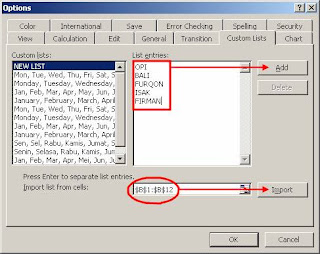
7. Anda juga bisa membuat sendiri daftar AutoFill. Silahkan klik menu Tools à Options. Pilih tab Custom Lists.


8. Ketikan daftar pengulangan yang ingin Anda buat pada kotak List entries, kemudian klik Add. Atau bisa juga dengan cara import dari cell yang terdapat pada sheet Anda, lalu klik tombol Import.

9. Setelah selesai, klik OK.


Membuat Bulan Berurutan Menggunakan Date


Pada sub bab sebelumnya, kita sudah mencoba membuat bulan berurutan menggunakan daftar yang terdapat pada custom lists. Sekarang kita akan mencoba membuatnya menggunakan fasilitas Date pada Fill Series.

1. Ketikan tanggal “1/1/2007” pada cell A1.

2. Blok cell A1 hingga cell A12.

3. Klik menu Edit à Fill à Series.

4. Pada kotak Series in, pilih Columns, kemudian pada kotak Type, pilih Date, dan pada kotak Date unit, pilih Month.


5. Biarkan pilihan yang lain.

6. Klik OK. Maka dari cell A1 sampai dengan cell A12 berisi tanggal berurutan, dari tanggal 01/01/2007 sampai dengan tanggal 01/12/2007.

7. Blok cell A1 hingga cell A12, lalu klik menu Format à Cells.

8. Pilih tab Number, lalu pilih Custom. Ketikan “mmm”.


9. Setelah selesai, klik OK.

Untuk fasilitas-fasilitas Fill lainnya pada Excel, silahkan dicoba-coba sendiri pada PC nya.

Page Break Excel

Page Break digunakan untuk membuat halaman secara terpisah pada suatu sheet. Jadi walaupun jarak antara range satu dengan range lainnya ataupun cell satu dengan cell lainnya begitu dekat, ia dapat dipisah halamannya saat di print preview/print. Marilah kita belajar membuat page break di dalam Microsoft Excel.

Membuat Page Break

1. Bukalah Microsoft Excel, lalu buatlah file Excel baru.
2. Ketikan pada cell A1: "Halaman 1".
3. Ketikan pada cell A2: "Halaman 2".
4. Misal, yang kita inginkan adalah saat di print preview, cell A1 akan berada pada halaman satu, dan cell A2 akan berada pada halaman dua.
5. Tempatkan kursor di cell A2.
6. Klik menu Insert à Page Break.


7. Silahkan klik menu File à Print Preview.

8. Maka sekarang kedua cell ini tampil secara terpisah di dalam dua halaman, padahal jarak mereka sangat berdekatan.


Mengedit Jangkauan Page Break

1. Klik menu View à Page Break Preview. Jika muncul dialog box, klik OK.

2. Perbesar tampilan Excel dengan cara mengubah ukuran zooming menjadi 200%.

3. Untuk memperbesar/memperkecil area page break, klik and drag kotak yang berwarna biru. Misal seperti pada gambar sebagai berikut:


4. Kita dapat pula menambah data tambahan di halaman 1 dan di halaman 2 tersebut. Keluarlah dari mode print preview, kemudian ketikkan pada cell A3: "TEST". Maka secara otomatis ia akan terlingkup oleh page break sebagai object pada halaman 2.

5. Jika sudah selesai, klik menu File à Print Preview.

6. Maka walaupun cell-cell ini letaknya saling berdekatan, halamannya menjadi terpisah di dalam 2 halaman.


Menghapus Page Break

1. Klik menu View à Page Break Preview. Jika muncul dialog box, klik OK.

2. Perbesar tampilan Excel dengan cara mengubah ukuran zooming menjadi 200%.

3. Klik area page break yang hendak dihapus

4. Pilih menu Insert à Remove Page Break.


Kesimpulan

Page break akan dibuat berdasarkan lokasi cell yang sedang kita aktifkan/pilih. Jadi jika cell C5 yang sedang kita pilih, maka ia akan membelah area dari sebelah kirinya dan sebelah atasnya. Perhatikan gambar berikut:

Macro di dalam Excel

Macro di dalam Excel adalah procedure di dalam VBA project (Microsoft Visual Basic) yang dapat dibuat oleh kita, baik dengan cara merekam dari berbagai aktifitas yang sudah kita lakukan di dalam Excel, maupun dibuat dengan cara mengetik sendiri secara langsung. Macro berguna untuk menjalankan berbagai aktifitas yang sering kita lakukan sehari-hari di dalam Excel, sehingga kita tidak perlu lagi mengulangnya secara manual.

Tempat penyimpanan macro dibagi menjadi dua, yakni di dalam workbook itu sendiri (This Workbook dan New Workbook) dan di dalam personal workbook (Personal Macro Workbook). Jika kita menyimpan macro di dalam workbook itu sendiri, maka macro dapat dijalankan hanya oleh workbook tersebut. Namun jika kita menyimpan macro di dalam personal workbook, maka macro dapat dijalankan oleh seluruh workbook yang aktif dibuka pada aplikasi Microsoft Excel.

Merekam Macro

Untuk merekam macro, silahkan ikuti langkah-langkah sebagai berikut:

1. Klik menu Tools à Macro à Record New Macro.

2. Ketikan nama macronya, misalnya “TestMacro”.


3. Shortcut key adalah kombinasi tombol pada keyboard yang dapat kita tekan untu

Go to link Download

Read more »

Tuesday, April 25, 2017

PCLinuxOS 2007 Cool Looking Linux Distribution

PCLinuxOS 2007 Cool Looking Linux Distribution


PCLinuxOS 2007 : Cool Looking Linux Distribution

Introduction: -
I have been user of Linux for over 8 years now the first Linux distribution i used was RedHat Linux 5.2 and since then have tried a number of different Linux distribution , but primarily i have sticked with Red Hat(Fedora) and now Ubuntu for serious work . Now Linux distribution over the years have matured a lot on desktop front right from early days when there wasnt even one descent package for Desktop work to present day case when Dell is selling Desktop Computers with Ubuntu Linux ,Things have surely changed a lot . Its the emergence of distributions like Ubuntu,Freespire(Linspire),PCLinuxOS and other Desktop Linux distros that have catalyzed the adoption(or at least emergence) of Desktop Linux and emergence of Desktop Linux Concept.

PCLinuxOS began as a fork of Mandriva Linux (Mandrake linux) four years back by Texstar and still has a number of features common with Mandriva Linux . It uses RPM package format and number of configuration wizards are similar to one used in Mandriva Linux . PCLinuxOS is considered one of the more user friendly desktop linux , now personally i have never used PCLinuxOS there was a certain buzz surrounding the release of PCLinuxOS 2007 hence i decided to try it out.

Here is my review of PCLinuxOS 2007: -

Installation : -
The Live CD Image is around 700 Megabytes in size which compresses around 2GB of packages , it took me about 7 Hours to download on a 256KBps Connection .

Here are the links from which you can download PCLinuxOS 2007 : -

Torrent: http://linuxtracker.org/torrents-details.php?id=4143

Download mirrors: http://www.pclinuxos.com/index.php?option=com_ionfiles&Itemid=28

Once ISO images are downloaded i would recommend burning ISO at a speed of 10x or 12x , anyways once you have burned the ISO you can always check the integrity of the CD from the boot menu .

On booting from the Cd Rom , this is the boot menu that is presented , as you can see PCLinuxOS provides a number of different options of booting into PCLinuxOS.
PCLinuxOS Boot Menu

PCLinuxOS Boot Up Screen

Now after about 4 minutes on my old laptop i was presented with the screen to chose keyboard configuration, Time Zone and Networking Configuration and stuff. Now This is one of the first thing i disliked configuring so many things ( ): ) every time you are booting the live cd.

Keyboard configuration screen

Anyways once configuration is over you are presented with beautiful log in screen , i have to admit i particularly like this black theme PCLinuxOS uses .
Login Screen
Now once the entire KDE Desktop loads , what strikes one first is that desktop is very aesthetically organized and icons,boot screens , Themes are extremely User Friendly , UI is one of the primary thing that strikes computer beginners and PCLinuxOS does extremely well in this not only it is extremely user friendly but also extremely polished and professional .Overall the User Interface of PCLinuxOS is simple , clean and attractive unlike many other Linux Distributions that are just getting more and more complex . PCLinuxOS uses Diamond Plate metal theme as its default theme and uses KDE desktop version 3.5.6 as its default window manager .

This is how PCLinuxOS Desktop Looks
Now the installation is extremely user friendly and is wizard based this is one area where Linux distribution have matured a lot over the years installation has become extremely user friendly . Now since i already had Partition created using Partition Magic i could not test the partition tool but it should work well .Entire installation took around 25 minutes on my laptop(Celeron 1.4Ghz 256Megabytes Ram ) .

After completing the installation strangely during configuring of GRUB PCLinuxOS did not autodetect Ubuntu Linux and Linux Mint that were already installed in my computer though it did detect Windows hence i had to manually edit menu.lst file of Grub boot loader to include menu option for Ubuntu and Linux Mint .
Anyways once installation was over i restarted the computer and logged into my new PCLinuxOS and found these major packages installed by default with PCLinuxOS : -
  • OpenOffice.org 2.2.0 Office Suite
  • Mozilla Firefox 2.0.3 : - Default Web Browser in PCLinuxOS
  • MPlayer 1.0rc1 : - The Movie Player for playing audio/video files
  • Gimp 2.3.16 :- For Image Manipulation
  • Thunderbird 2.0.0
  • KDE Multimedia applications :- Amarok , Kaffine , K3b , and other applications
  • Java JRE , Macromedia Flash , a number of Multimedia Codecs (w32codecs not included)
and many more there are over 2Gigs of packages that are installed , and many more (5000+) Applications can be installed from repositories using Synaptic Package Manager .

Amarok :-Rocking Music Management software

The Movie Player
Now unlike some other Linux Distribution that dont include Multimedia Codecs , Java JRE or Macromedia Flash because of licensing restrictions or some other reasons . You dont have to worry about these things if you are using PCLinuxOS this should help someone who is new to Linux and moving from Windows to Linux . I have seen a number of my computer novice friends who do not have Internet Connection being frustrated as hell while using Ubuntu Linux unable to play their favorite audio/video files

Now i tried playing a number of different media files and most of them played flawlessly and ones that did not could be easily played by installing w32codecs whose installation isnt difficult. Since Flash was pre-installed i could easily watch videos on YouTube or Google Video , also since Java JRE was pre-installed Java Applets worked flawlessly in Firefox . Even divx files played without any additional installation of codecs . Overall PCLinuxOS multimedia support is among the best among different Linux Distributions . One of the most crucial aspects that make PCLinuxOS so Newbie friendly.

Here are the list of codecs PCLinuxOS supports(taken from wikipedia) :-

PCLinuxOS can also play back proprietary multimedia files (wma, mp3, mpg, rm, mov, etc) by default, something that some Linux distributions cannot do without further user configuration, because of proprietary and ideological issues. However, the controversial libdvdcss library for DVD playback is not installed initially, but is available in the official software repository.

Mozilla Firefox and Thuderbird are well integrated clicking on email link in Firefox opens up Thuderbird and clicking on web page address in Thuderbird opens up Mozilla Firefox .

Application wise the distribution comes preloaded with most of the application a normal desktop user requires like Gimp-For graphics management , digikam-for photo management , Amarok for Music management and Playing , OpenOffice a really solid office suite comparable to Microsoft office , and other really cool applications .

Various Screenshots showing installed applications in PCLinuxOS


PCLinuxOS provides easy way of configuring different aspects of the distribution using the PCLinuxOS control centre(System ->Configuration->Control Centre) . Now this Control Centre is similar to one that is shipped with Mandriva Linux.
PCLinuxOS Control Centre


Now by default PCLinuxOS does not automatically enable 3D Effect (Beryl/Compiz) and can be enabled from Control Centre by going to Hardware and selecting Configure 3D Effect .
Enabling 3D Effect in Control Center
Hardware support is also excellent in PCLinuxOS most of my hard ware was properly detected and i had no problem in using them from USB Pendrive to K750i phone everything worked fine .


Conclusion :-
Overall , PCLinuxOS is one of the finest Desktop Linux Distribution i have tried in past few years , it integrates some of the wonderful features of Mandriva Linux and adds a power pack collection of software in 700Megabytes of Live CD .With its extremely clean and attractive interface and ability to play multimedia files out of the box its one Linux Distribution that should not give Linux Newbies headache. I have been a passionate user of Ubuntu and i can safely say if i had to recommend a Linux distro to someone new at computers it wont be Ubuntu but PCLinuxOS .

PCLinuxOS Website : - http://www.pclinuxos.com/

Distrowatch page of PCLinuxOS : - http://distrowatch.com/table.php?distribution=pclinuxos

Article written by Ambuj Varshney(blogambuj(at)gmail.com)
For Linux On Desktop Blog(http://linuxondesktop.blogspot.com)
(C) 2007, Ambuj Varshney


Go to link Download

Read more »

Wednesday, April 19, 2017

Pocket PC 2007 Collection II

Pocket PC 2007 Collection II


O jRC4_freeware
O  
O jText
O Links
O LockBox
O Logical.Sky.CEdit.v3.5.ARM.PPC.Cracked-BiNPDA
O Mastersoft_Billable_Buddy_1.7
O Mastersoft_EasyLoan
O Mastersoft_MSMoney
O Mastersoft_Photo_Album_1.35
O Mastersoft_Scientific_Calculator_1.04
O MathZ_SciCalc
O MicroCalc-_as_like_as_MS_Excel
O Mirror
O mms.business.icons
O Mobipocket.reader.pro
O MobipocketOfficeCompanionProV2.1
O Mocha_telnet
O MP3Go
O mp3tagger
O MsActSynsetup4.5b
O Multimedia
O myBuddies
O My_Last_Cigarette
O N-Player
O NetFront_3.3
O NetwIRC
O NextUp_1.0
O Nokia_Multimedia_Converter_Pro_v_2.0b
O NotePad_freeware
O OggPlayer
O Opera
O Personal_Jotter
O Phone_Recorder_Plus_1.0.3
O Photo.Editor
O PocketVineyardV1.0
O Pocket_Controller_Pro
O puTTY__Telnet_Ulitily
O QFileman
O QQ
O QuickTimer
O  
O RealNetworks_Helix_Mobile_Producer_Professional_11.0.547

Go to link Download

Read more »