Friday, February 10, 2017
Photoshop 4 Photos Week 4 Review
Photoshop 4 Photos Week 4 Review
Howdy
Those of you that are continuing on to the next 4 classes… The first class is next Saturday, Nov 17
There is no class Thanksgiving week end on November 24
The Adjustment Brush (Camera Raw)

We started class #4, by learning how to do local (selected) editing in Camera Raw. I need to write up some notes about that, so stay tuned, sometime in the next week Ill post some notes about using the Adjustment Brush… If you have specific questions about the adjustment brush, now would be a good time to send an e-mail.
Gradients
Heres a link to a page with a brief overview on using gradients in Photoshop and (Elements), and Camera Raw and Lightroom. About Gradients
Panoramas and Content Aware Fill
To stitch a panorama you send the selected images to Photoshop via the Bridge. The menu is…
Tools > Photoshop > Photomerge…
This sends the selected photos (dont worry about order, as Photoshop will sort that out for you… )
In the Photomerge dialogue box… if your horizon is flat, check the Cylindrical Button… then click okay. If Photoshop cant figure out where the pieces fit itll let you do the assembly manually.
Instead of cropping your panorama you can use Content Aware Fill to let the computer "paint in the holes…"

With content aware fill the basic steps are, select the area to be filled. Expand the selection by 10 pixels… choose the menu item
Edit > Fill select Content Aware, click okay…
This tutorial shows you how to select an object, and remove it from the photo and use the same selection later…
Content Aware Fill
Printing from CS6
Printing setup in Photoshop CS6 has changed… but, the procedure to get a print ready to print hasnt.
The Basic rule here is: You want Photoshop to manage the color NOT THE PRINTER! You after all have done all of "that" photo enhancing and you want to see the colors you selected in the print!!
Read the following pdf file by Martin Evening…
Color management
Ben Wilmores Colormanagement Simplified is no longer available
To save you ink, paper and time you NEED to soft proof your images…
Youll need color profiles for YOUR paper and printer.
Heres the steps
Softproofing in Photoshop
Softproofing in Lightroom 4
Whew, that ought to keep you busy for a while… Got a question? Send that e-mail!
Go to link Download

Saturday, December 17, 2016
Question How do I move my Lightroom Photos to an external hard drive
Question How do I move my Lightroom Photos to an external hard drive
( I ); question can I drag and drop all the pictures in the folder “My Lightroom Photos” located now on my C: drive to my external hard drive ( I ) “My Book”?

Choose the Menu item


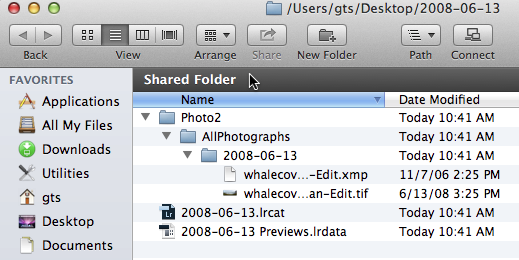
As you can see the original file structure was preserved
Go to link Download
Wednesday, October 26, 2016
Red Effect for Photos Photoshop Tutorials
Red Effect for Photos Photoshop Tutorials
 |
| Red Effect for Photos , Photoshop Tutorials |
Hello there , and welcome for other photo effect tutorials , last time i have done a purple effect click here if you want to watch it .
the video for this tutorial is down , enjoy watching and for the gradient
click here to Download
Go to link Download