Showing posts with label textures. Show all posts
Showing posts with label textures. Show all posts
Tuesday, April 18, 2017
Raised Effect Textures
Raised Effect Textures
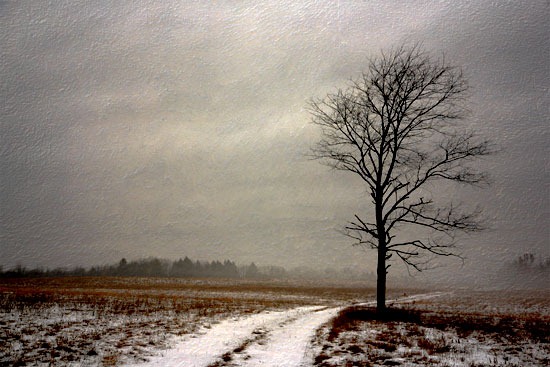
Raised Effect Textures can supply lots of possibilities using different
layer modes and opacities, and dont be afraid to add other textures
or as I do, add the background layer as top layer and experiment the
the modes within Photoshop. Read more for examples.

Raised Effect One

Raised Effect Two

Original Image

Example One: Raised Effect texture 1 set as top layer, Layer Mode set to Multiply and the
Opacity set at 70% - duplicated the Background Layer and set as top layer and the Layer
Mode set to Vivid Light and the Opacity at 100%.

Example Two: Raised Effect texture 1 set as top layer, Layer Mode set to Color Burn and
the Opacity set at 67%.

Example One: Raised Effect 2 texture set as top layer, Layer Mode set to Soft Light and the
Opacity set at 100% - duplicated the Background Layer and set as top layer and the Layer
Mode set to Overlay and the Opacity at 100%.
Download Here:
Raised Effect Textures.zip
OR DOWNLOAD HERE
Go to link Download

Monday, December 19, 2016
Pastel Textures Set
Pastel Textures Set

Pastel Textures Set contains ten colorful textures, all measuring 3400 X 2429 pixels in
size. Thought Id also post a quick and simple follow along showing the steps I did to achieve my outcome.

Before Image:

After Image:
Process:
Step 1: Open the Original photo, which becomes the background layer.
Step 2: Added the texture "Pastel 7" and set the layer mode to "Color" and the opacity at 100%.
Step 3: Made a duplicate of the background layer and set the layer mode at "Multiply" and the opacity at 53%.
Step 4: Added the texture "Pastel 6" and set the layer mode to "Linear Burn" and the opacity at 45% applied Gaussian Blur 18%.
Step 5: Added the texture "Pastel 8" and set the layer mode to "Color Burn" and the opacity at 41% applied Gaussian Blur 18%.
Flattened all layers and saved ..................done!
Small samples of textures I zipped set shown below:


Download Zipped Set Here:
Go to link Download
Subscribe to:
Posts (Atom)