Showing posts with label changing. Show all posts
Showing posts with label changing. Show all posts
Sunday, February 19, 2017
Recovery OS Toshiba Without Changing Drive Partition
Recovery OS Toshiba Without Changing Drive Partition
If you have a computer or laptop with Original Operating System and recovery System, It can be used to make your Operating System normal if it has trouble anytime. In this case I will tray to explain the way to recovery Laptop Toshiba L510 with original Windows Vista Operating System. In this article I will discuss recovery without changing Partition.
First
Turn on your laptop then press F8 until appear this image below> Choose Repair Your Computer


from all steps, step below is the most important by choosing the middle choice we are only lost drive C, other drive will not changed

Sixth
There are still more steps must be followed, but all of steps are easy to understand, you may need about 40 minute to complete the recovery process
Hopefully Useful...
Second
choose keyboard, user name and password (if you have password)
Third
Choose Toshiba recovery wizard, after that usually appear Warning that data will be deleted, just click OK
Forth
choose recovery of factory default software
Fifth
Choose Recovery without changing drive partitionfrom all steps, step below is the most important by choosing the middle choice we are only lost drive C, other drive will not changed
Sixth
There are still more steps must be followed, but all of steps are easy to understand, you may need about 40 minute to complete the recovery process
Hopefully Useful...
Go to link Download

Wednesday, October 19, 2016
PLDT MY DSL ADMINISTRATOR PASSWORD AND LOGIN CHANGING
PLDT MY DSL ADMINISTRATOR PASSWORD AND LOGIN CHANGING
How to change Admin Password for PLDTmyDSL WiFi router
Because there are many default user and admin password can be found at Google for router and modem.
It better to change the default password to protect your internet connection account.
Example here is Model :Speedsurf 504An
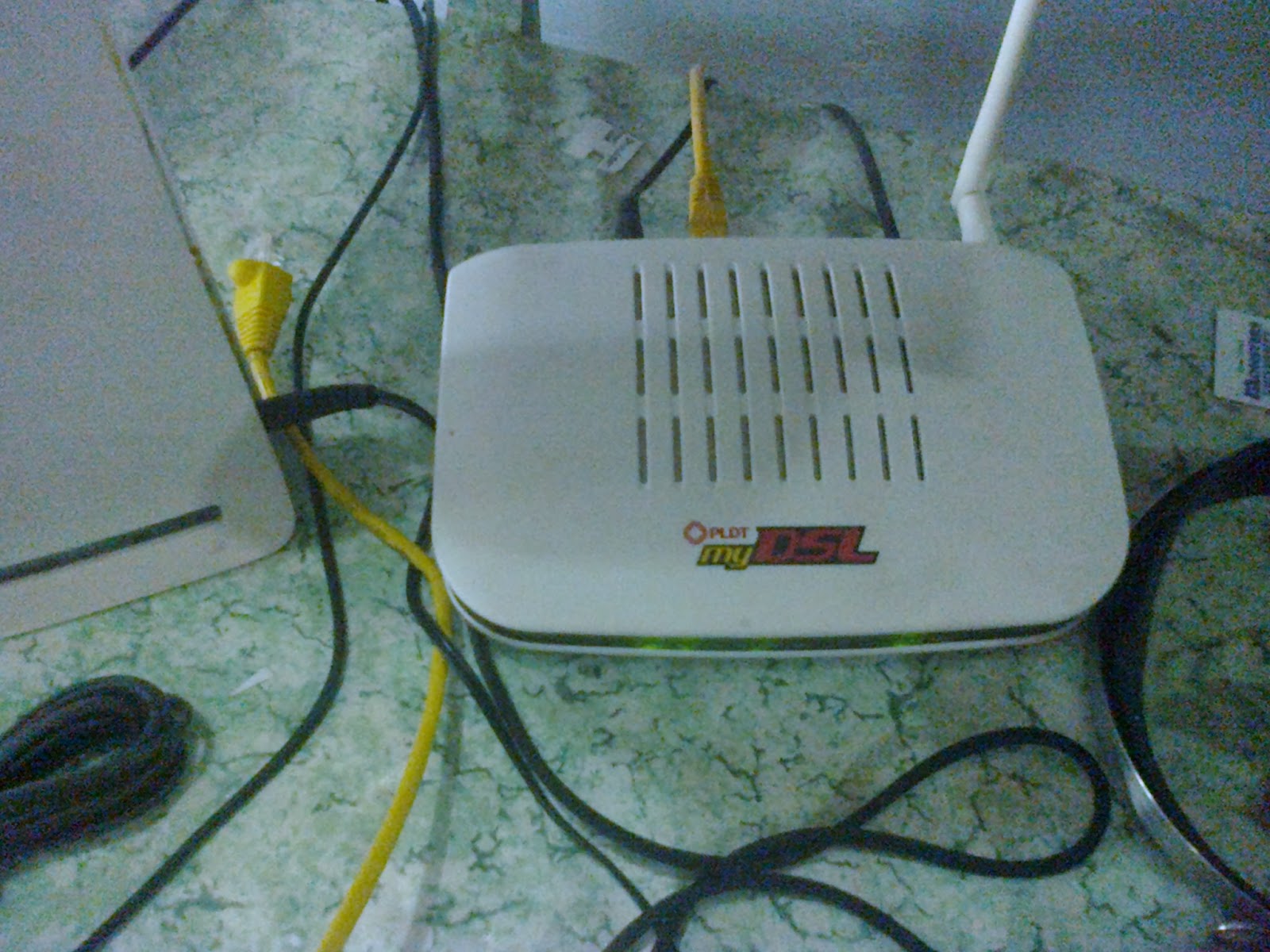
This what I did step by step.
1. plug your my DSL router in your PC/ Laptop via LAN then when status connected open your fave browser type this IP address 192.168.1.1 and a box pop out will request log in type this.
Default user with admin rights (eto ang dapat gamitin complete tab and privilege)
User Name: adminpldt
Password: 1234567890
Default user ONLY No admin access ( huwag nyo gagamitin eto kulang tabs)
User: admin
Pass: 1234
PLDT Fibr
user: admintelecom
pass: telecomadmin
(pag ayaw ng adminpldt do a Hard Reset press the reset button for 2 minutes)
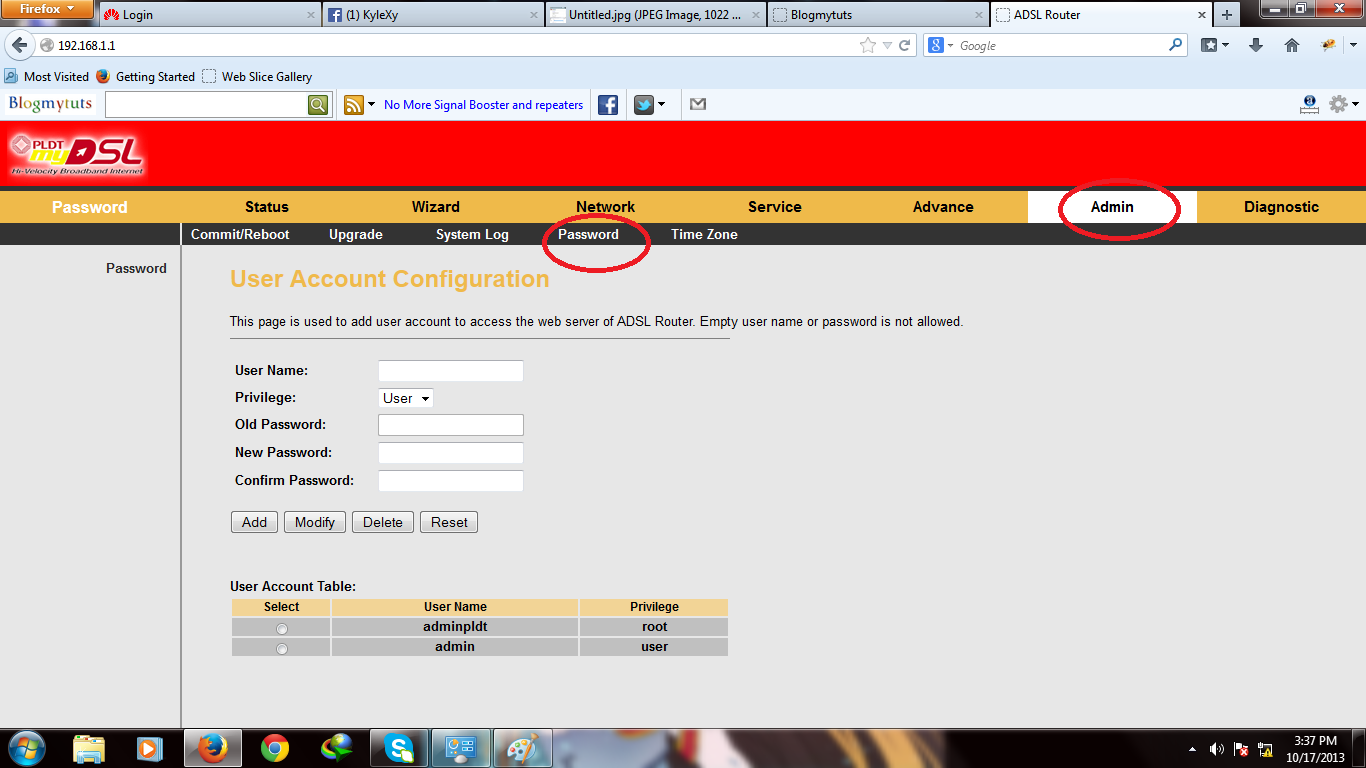
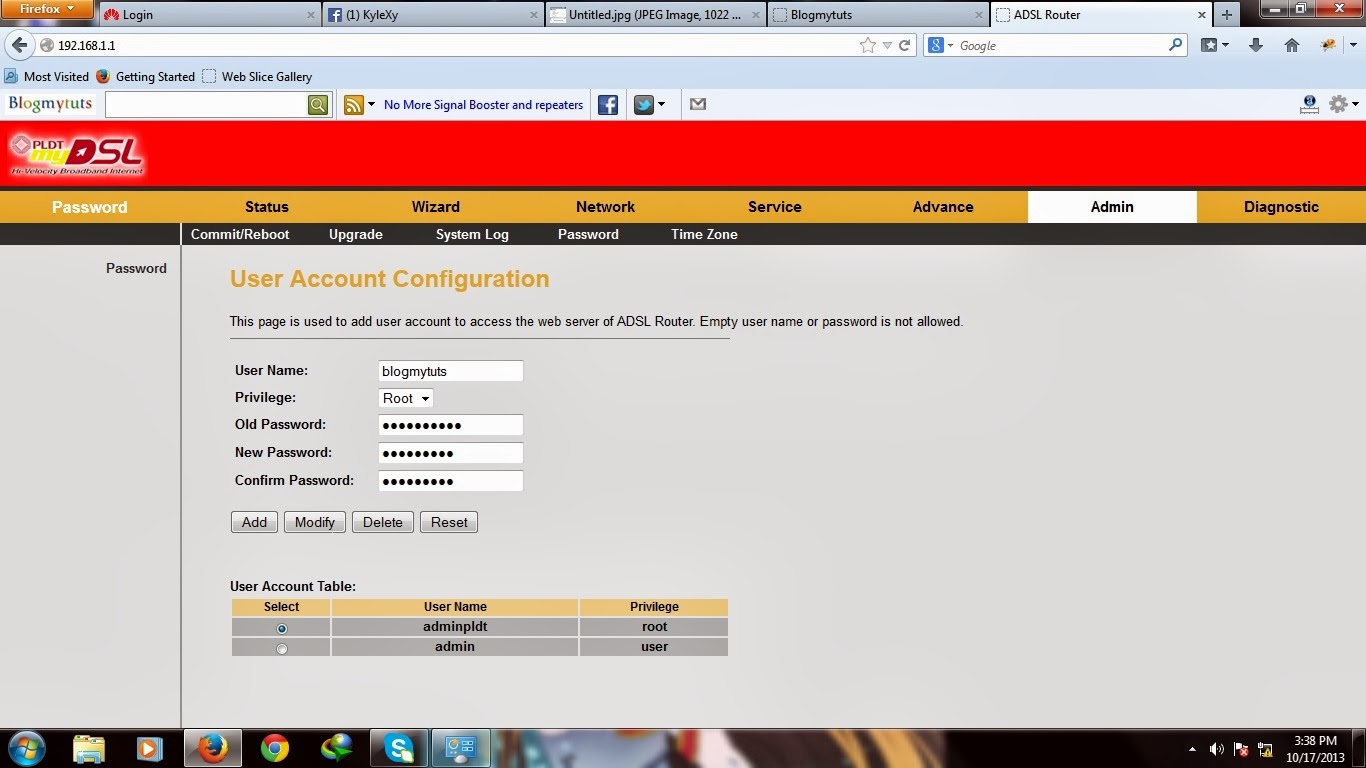
2. Go to Admin Panel click Password then select by click the dot which one you want to change password.
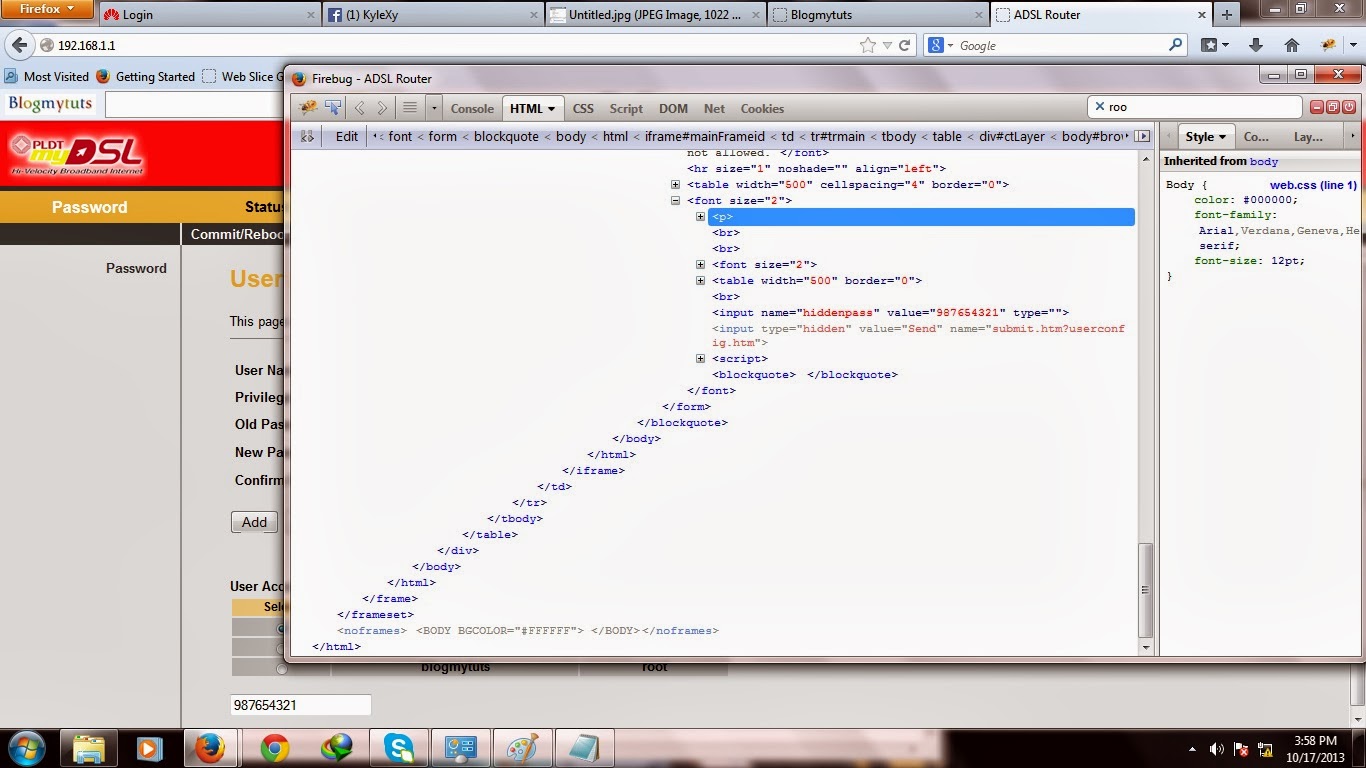
Proof that i have change the admin pass show the hidden password on elements.

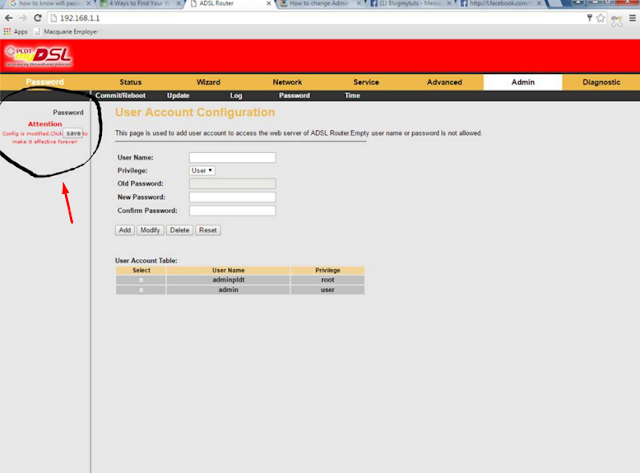
For Other Model like BroudTec
Maintenance -Password tab
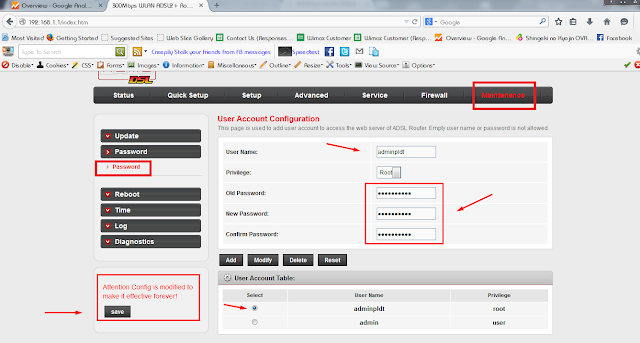
You can add user here too..
Go to link Download
Subscribe to:
Posts (Atom)